
How to Choose a Cover Photo on a TikTok Slideshow
Learn how to choose a cover photo on a TikTok slideshow, where Edit cover lives, how to pick a frame that wins on the grid, and how to keep cover text readable.
Bento Team · October 25, 2026
TL;DR
- Tap Next twice to reach the post screen, then tap Edit cover, pick a photo, crop it, and tap Save.
- Your cover does not have to be the first slide, so use your clearest shot.
- Pick a frame that still reads at profile grid size, with text near the center.
- Treat the cover as final at Post and check it at small size with a draft first.
The cover is the photo people see before they swipe, so it does the job of slide one.
It is also what people see when the post shows up on your profile, so it has to work at small size as well as full screen.
That makes the cover one of the most important choices in the whole post. A strong cover tells people what the slideshow is about before they tap. A weak one gets skipped, even when the slides behind it are great. This guide shows where the cover control lives, how to pick the right frame, how to keep cover text readable, and what to check before you post.
Where to find the cover control
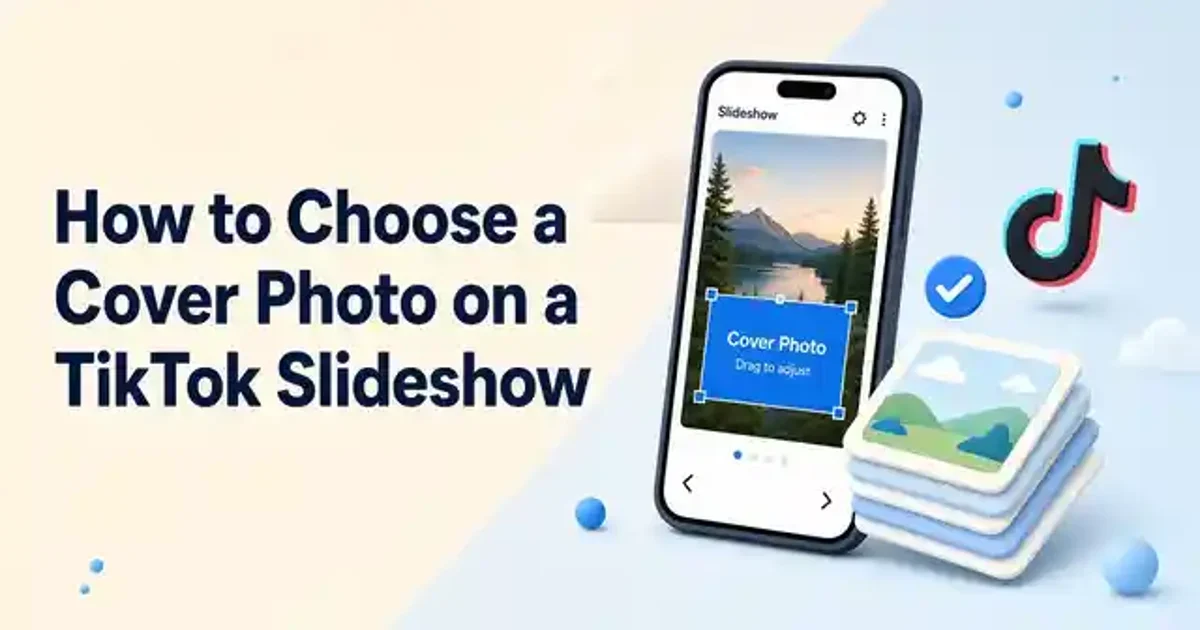
To change the cover on a TikTok slideshow, keep tapping Next on the editing screen until you reach the final post screen, then tap Edit cover. Swipe to the photo you want as the cover, drag the frame to set the crop, and tap Save. Then tap Post.
- Add your photos and get them in the order you want.
- Tap Next to reach the editing screen for filters, sound, text, and stickers.
- Tap Next again to reach the post screen.
- Tap Edit cover, swipe to the photo you want, drag the frame to set the crop, and tap Save.
- Finish your description, hashtags, and privacy settings, then tap Post.
TikTok's help center puts Edit cover on the screen after the second Next, alongside the description and privacy settings. Tap Edit cover there to set what people see first, then finish the post.
Changing the cover does not reorder your slides, change your sound, or touch your caption.
That means you can try a few options on the cover screen without worrying about the rest of the post. Take a moment here instead of rushing to publish.
Order still matters for the slides themselves, so add your photos in the sequence you want viewers to see.
Your cover does not have to be slide one
When you tap Edit cover, you swipe to the photo you want as the cover, drag the frame to set the crop, and tap Save.
So the cover does not have to be your first slide. If your strongest shot sits in the middle of the deck, use it as the cover and let slide one carry the hook text.
This split is the core decision. The first slide speaks to people who already opened the post, so it can tease a question. The cover speaks to people who have not tapped yet, so it needs to show the topic plainly. Many people leave a weak first slide as the cover simply because it came first.
Three questions to pick the right frame
Before you settle on a frame, ask a few quick questions. Can someone name the topic from this image alone, with no caption? Is the product or result actually visible, or only implied? Is the subject still clear at the size of a small profile grid thumbnail?
A frame that fails the last question is an easy miss. A wide flat lay of many products can look great at full size and turn into texture on a small grid.
For product slideshows, pick photos by the job each one does, not by which looks best. The cover is the product, sharp, on a plain ground, because this is the frame people decide on. The other slides handle context, detail, proof, and a close, which is the shot you put the offer line on.
| Frame type | Works as a cover when | Skip it when |
|---|---|---|
| Single product on a plain background | The item is the whole point of the post | The slideshow is about a process or a story |
| Before and after result | The change is easy to see at small size | The difference needs a caption to make sense |
| Busy flat lay or group shot | Almost never | The items shrink into texture on the grid |
| Title card with a short line | The post is a list or a step by step guide | The words crowd toward the edges |
Keep cover text easy to read
Keep any words on the cover short and close to the center of the image. Text that runs to the edges is easier to crop or hide, so a single centered line is the safer choice. If the photo already says enough, you can skip cover text entirely.
Use a tall vertical frame for every image, since people watch in a vertical feed. Pick a bold, simple font and a color that stands out from the photo behind it. Then shrink the image on your screen and see if you can still read the words.
Check the cover before you post
TikTok's Help Center lists Edit cover on the post screen for photo posts, next to Add description and Add hashtags. TikTok's help page names the option but doesn't describe the cover screen itself, so follow the prompts in your version of the app.
Plan as if the cover is final once you tap Post, and check your own app before you count on changing it later. A good habit is to save a draft first, then look at how the cover reads at small size rather than full screen. The small thumbnail is where the cover actually has to win.
Plan covers with the rest of your content
Covers are easier when you choose them while planning the post, not on the final screen. Name the cover image in your folder, write the cover line next to the caption, and pick the frame before you open the app.
With Bento, you can plan TikTok posts in one calendar alongside your other networks, so the cover sits next to the caption and hashtags instead of being a last second guess. If you want to study covers that already work in your niche, the Bento TikTok cover downloader saves them as images you can use for reference.
Quick checklist before you post
- The cover shows the topic clearly, even if it is not the first slide.
- The subject is still easy to identify at profile grid size.
- Cover text is short and sits near the center, away from the edges.
- You found Edit cover on the screen after the second Next and tapped Save.
- You checked the cover at small size with a draft before posting.
Run through that list for every slideshow and your cover will do its real job, which is getting the right people to tap.